 Old Photo Studio
How to enlarge an old photo for printing
The scan matters most. A free 4× enlarger helps when all you have is a small copy.
Quick answer:
- If you have the print, scan it at 400 to 600 dpi. That gives you the most real detail for a big print, more than any enlarging tool can add.
- If all you have is a small copy, such as an old small file or a phone photo of a print, Old Photo Studio can clean it up and make it 4 times wider and 4 times taller, free in your browser.
- For a sharp print, aim for about 300 pixels per inch.
1. Start with the best scan you can
A scan of the print is real detail; enlarging only estimates it. The Library of Congress says: “Photographs you intend to enlarge to 8” x 10” or greater can be scanned at 400 or 600 dpi. Anything above 600 may be unnecessary.” A 4 × 6 inch print scanned at 600 dpi is 2,400 × 3,600 pixels, already enough for an 8 × 12 inch print. No scanner? A careful phone photo works too; see how to scan old photos.
Keep that scan as your master copy, whatever you do next.
2. When a 4× enlarger helps
Old Photo Studio repairs and enlarges a working copy of your photo:
- On a computer whose browser supports WebGPU, the working copy is up to 1,024 pixels on its long side, so the saved PNG is up to 4,096 pixels.
- On phones and other browsers, the working copy is up to 768 pixels, so the PNG is up to 3,072 pixels.
So it helps most when your copy is small, such as a 600 × 400 pixel file, which becomes 2,400 × 1,600 pixels. If your scan is already larger than the PNG would be, the PNG has fewer pixels than your scan. Use the PNG for its repairs and color, and use your scan for the largest prints.
How to do it:
- Choose “Choose a photo”, or drag the file onto the tool. Your photo stays on your device.
- The tool marks scratches and dust in red. Fix the marks and choose “Fill in and restore”, or choose “Skip this step” if you only want it larger. See how to fix old photos.
- The tool evens out faded tones, cleans up grain, blur and compression marks, and makes the photo 4 times wider and 4 times taller. For a black-and-white photo, “Add color” is on; switch it off to keep it black and white.
- Drag the line across the result to compare it with the original, and use “View at full size” to check the detail. Then choose “Save photo”.
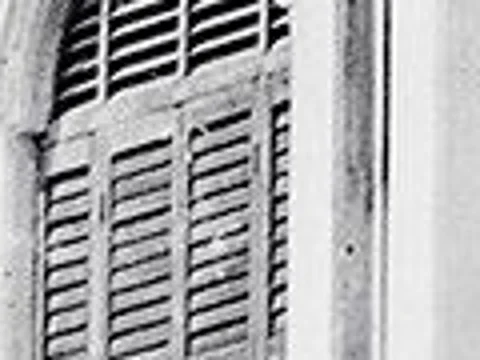 Ordinary resizing (4×)
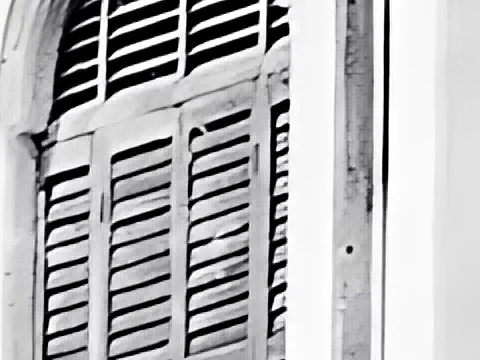 Old Photo Studio (4×, color off)

3. How big will it print?
Divide the pixels by 300 to get the size in inches for a sharp print you hold in your hand. The US National Archives puts it the same way: an 8 × 10 inch original scanned “at 300 dpi” makes “a file that is 2,400 x 3,000 pixels”.
| Print size | Pixels for 300 per inch |
|---|---|
| 4 × 6 in (10 × 15 cm) | 1,200 × 1,800 |
| 5 × 7 in (13 × 18 cm) | 1,500 × 2,100 |
| 8 × 10 in (20 × 25 cm) | 2,400 × 3,000 |
| 11 × 14 in (28 × 36 cm) | 3,300 × 4,200 |
Fewer pixels can still work. The Library of Congress notes that commercial photofinishers generally recommend “at least 1200x1600 pixels” for an 8 × 10 inch print, and that “2400x3000 pixels … will produce improved results”.
What enlarging can’t do
- It estimates detail; it doesn’t recover it. The new pixels are the tool’s best guess at what was there. Faces can come out a little smoother than they were. For clear faces, Enhance faces rebuilds some detail, and that detail is a guess too.
- It can’t sharpen what was never sharp. If a face is only a few blurry dots, there is no detail left to work from, in the file or for the tool. If you still have the print, a new scan at a higher resolution keeps more of it in your master copy.
- It doesn’t replace your original. For a photo that matters to your family, the Library of Congress suggests you “consider framing a facsimile and keeping the original” in good storage. Print from a copy, and keep the original print and your scan safe.
Questions
Can an old photo be enlarged without losing quality?
The best way is a new scan of the print at 400 to 600 dpi; that keeps the most real detail. Enlarging a file with any tool adds estimated detail, which often looks good but isn’t new information, so check the result at full size before you print.
Can a small photo be enlarged?
Yes. If your only copy is a small file, such as 600 × 400 pixels, Old Photo Studio makes it 4 times wider and taller: 2,400 × 1,600 pixels, enough for a sharp print of about 8 × 5 inches. If you still have the print, scanning it at 600 dpi gives you more real detail than enlarging the small file.
Is it free?
Yes. Old Photo Studio is free, with no sign-up and no watermark, and your photo stays on your device.
Sources
- Library of Congress, Personal Digital Archiving: “Scanning Your Personal Collections” (PDF). https://www.digitalpreservation.gov/personalarchiving/documents/scanning_collections.pdf (read November 9, 2026)
- US National Archives: “Digital Photographic Records”. https://www.archives.gov/records-mgmt/initiatives/digital-photo-records.html (read November 9, 2026)
- Library of Congress, Sustainability of Digital Formats: “Still Image” preferences. https://www.loc.gov/preservation/digital/formats/content/still_preferences.shtml (read November 9, 2026)
- Library of Congress Preservation: “Frequently Asked Questions: Photographs”. https://www.loc.gov/preservation/about/faqs/photographs.html (read November 9, 2026)
- What our tool does and doesn’t do: How it works and the FAQ.