 Old Photo Studio
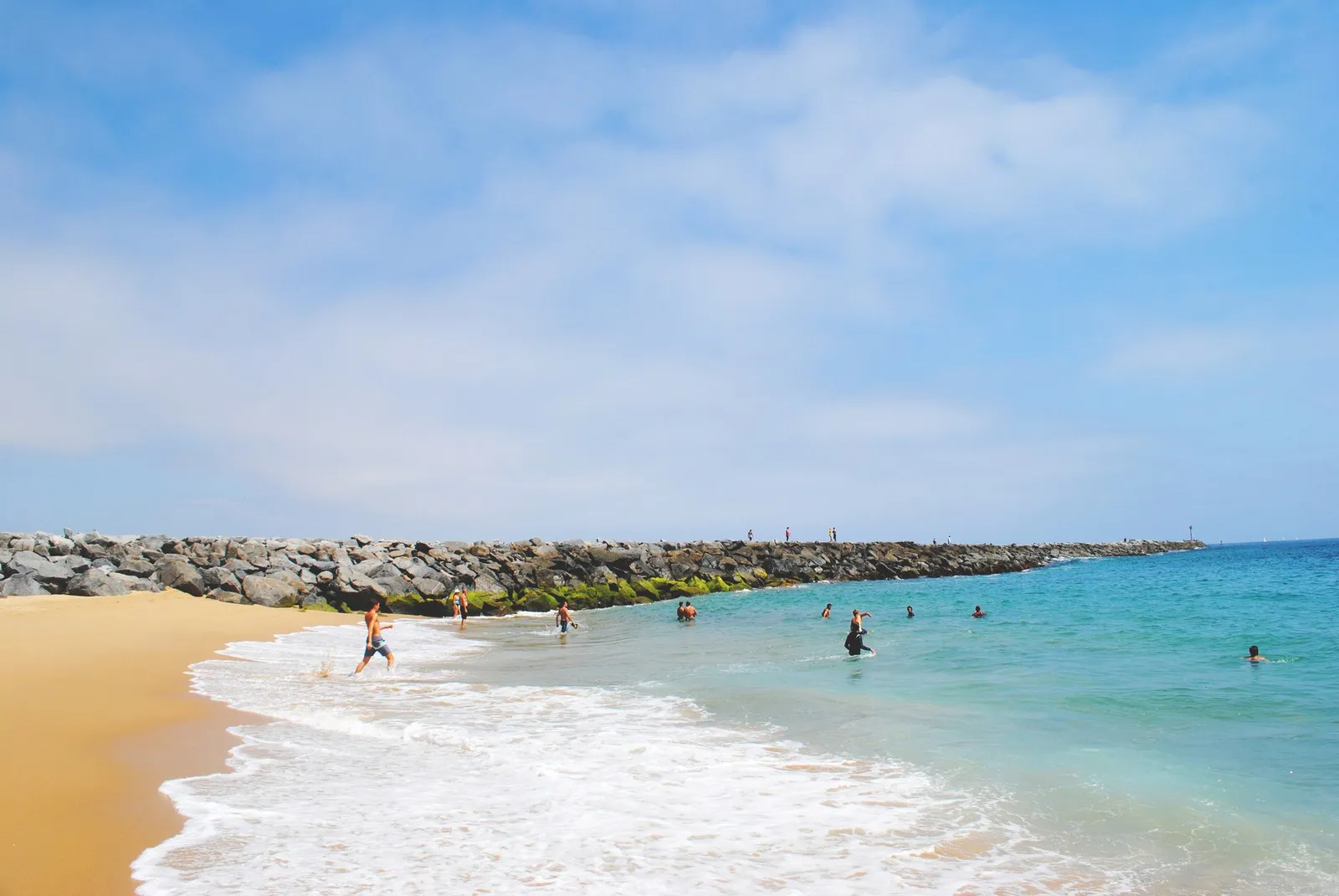
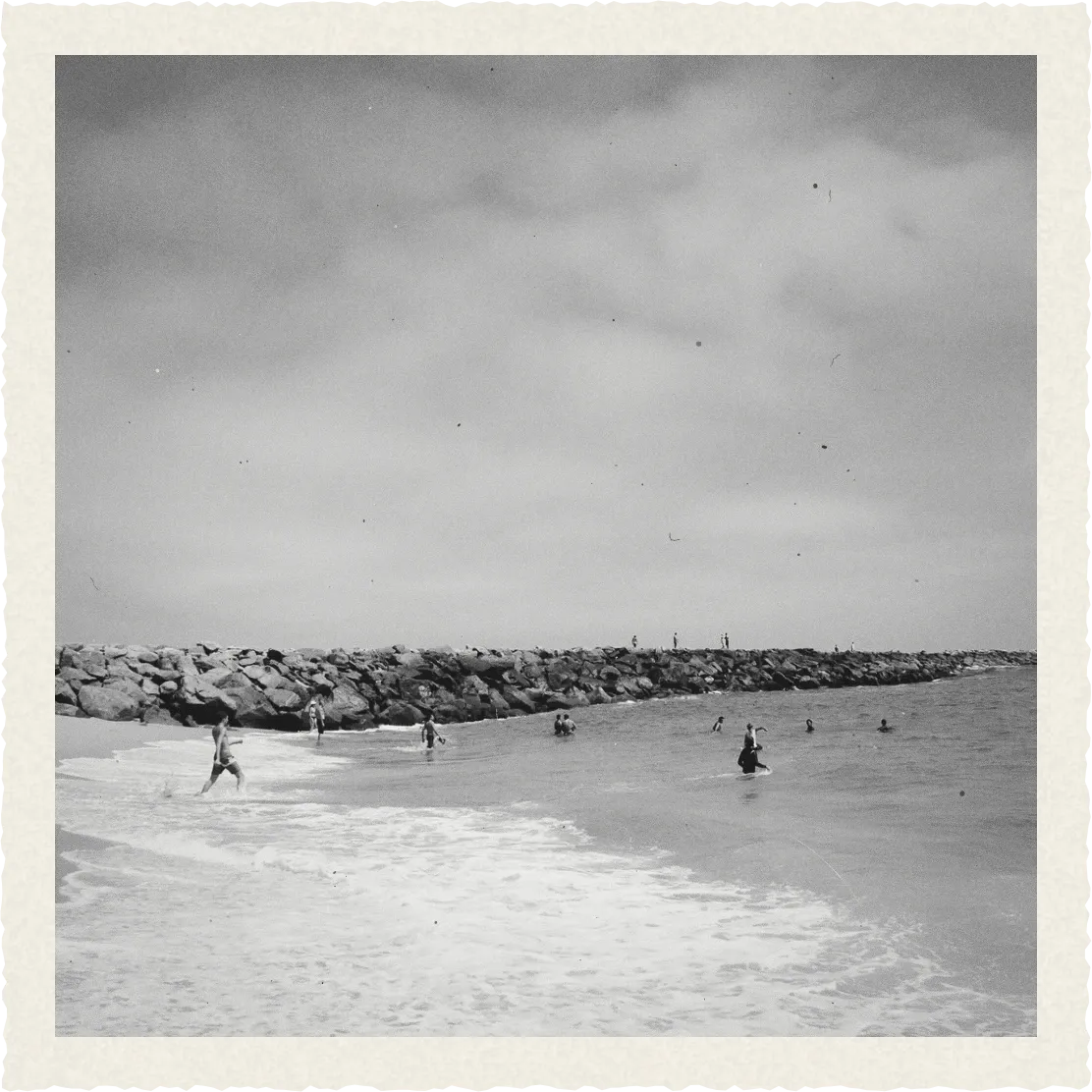

Quick answer:
- Choose a photo.
- Pick a look.
- Set how old it looks, how much grain it has and how many scratches it shows.
- Save it as a PNG.
It’s free, with no sign-up and no watermark, and your photo stays on your device. It adds an old look; it isn’t a real old photo.
The 15 looks
Silver mirror photo · Daguerreotype, 1840s
A silvery, low-contrast picture behind a brass mat. The J. Paul Getty Museum describes the daguerreotype as “a direct positive image fixed on a sensitized silver-coated plate”, popularly called a “mirror with a memory”. The process was announced in January 1839.
Dark metal photo · Tintype, 1860s
A dark, warm-grey picture in an oval mat. The Library of Congress says tintypes “were invented in the mid-1850s”, and that the image was made on “a thin sheet of iron coated with a dark lacquer or enamel”.
Sepia portrait card · Cabinet card, 1890s
Warm brown tones on a card mount. See sepia filter for what sepia toning was.
Blue print · Cyanotype
White highlights on deep blue. The Science Museum says the cyanotype was “a process developed by John Herschel in 1842”, using paper “treated with light sensitive iron salts”. Anna Atkins used it for a book of algae photographs in 1843.
Soft early snapshot · Box camera, 1910s
A soft, warm-grey snapshot with dark corners. The US National Park Service notes that a simple box camera introduced in 1900 “introduced snapshot to the masses”.
Crisp black and white · Glass plate, 1920s
A sharp black-and-white picture with a dark plate edge. The US National Archives holds glass plate negatives “dating from the late 1850s through the 1950s”.
Bold news photo · Press camera with flash, 1940s
High contrast, coarse grain and harsh light on the near ground.
Square black and white · Twin-lens camera, 1950s
A crisp, neutral square print with fine grain and a deckled white edge.
Faded color print · 1960s
Soft colors with a reddish tinge and pale, yellowed highlights. See vintage photo filter for why old color prints change color.
White-frame instant photo · Instant camera, 1970s
A soft, cream-toned picture in a white frame with a deep bottom edge. The MIT Lemelson Center notes that the first instant camera went on sale on November 26, 1948.
Square color print · 1970s
Punchy color, a thin white border and rounded corners.
Dreamy light leaks · Toy camera
Strong dark corners, warm light leaks and saturated color.
Flash snapshot · Disposable camera, 1990s
A flash-lit foreground, a darker background and a cool, greenish cast.
Date-stamped snapshot · Point-and-shoot, 1990s
A clean color snapshot with an orange date in the corner.
Black and white strip · Photo booth
Three black-and-white frames on a strip. Getty News says the modern photo booth first appeared “near Times Square in New York in September 1925”.
How to make a photo look old
- Choose a photo. Select “Choose a photo” and open a JPEG, PNG or WebP image, or select “Try it on a sample photo”.
- Pick a look and adjust it. Select one of the 15 looks, then use “Age” (Newer to Older), “Grain” and “Scratches” (Less to More). Use “Compare before and after” to check the change.
- Save it. Select “Save photo”. The tool saves a PNG.
Tips for a convincing result
- Pick a fitting photo. Modern things such as cars, phones and screens give the age away, so the looks work best on scenes without them.
- Set the age. “Age” fades and warms the picture. Grain and scratches are separate, so you can have an old tone with a clean surface.
- Turn the frame off with “Border” if you want only the picture.
Honest use
This adds an old look. It isn’t a real old photo. Please don’t present an edited photo as a real historical one.
Questions
Is it free?
Yes. There’s no sign-up and no watermark.
Is my photo uploaded?
No. The looks are made in your browser, and your photo stays on your device.
Can I turn a color photo into black and white or sepia?
Yes. Pick “Square black and white” or “Crisp black and white” for black and white, or “Sepia portrait card” for warm brown tones. See sepia filter for more on sepia.
Does the saved photo keep my photo’s hidden details?
No. The saved PNG carries none of your photo’s hidden data, such as location, camera or date.
I have a real old photo. Can I restore it instead?
Yes. Restore a photo removes scratches and dust, adds color to black-and-white photos and makes them larger, also free and in your browser.
Sources
- J. Paul Getty Museum: “In Focus: Daguerreotypes”. https://www.getty.edu/art/exhibitions/focus_daguerreotypes/ (read November 9, 2026)
- Library of Congress: “The Photographic Process”, in the exhibition “The Last Full Measure: Civil War Photographs from the Liljenquist Family Collection”. https://www.loc.gov/exhibits/civil-war-photographs/the-photographic-process.html (read November 9, 2026)
- Science Museum Blog: “Happy Birthday Anna Atkins!”. https://blog.sciencemuseum.org.uk/happy-birthday-anna-atkins/ (read November 9, 2026)
- US National Park Service: “A Retreat Fit for a President”, Lesson 1 timeline, 1900. https://www.nps.gov/features/shen/2019/hoover/lesson-1/timeline/1900-2.html (read November 9, 2026)
- US National Archives: “Glass Holdings in the Still Picture Branch”. https://www.archives.gov/research/still-pictures/still-picture-glass-holdings (read November 9, 2026)
- MIT Lemelson Center: “Edwin Land”. https://lemelson.mit.edu/resources/edwin-land (read November 9, 2026)
- Getty News: “The Art of Photo Booths”. https://www.getty.edu/news/photo-booths-history/ (read November 9, 2026)