 Old Photo Studio
Can old photos be restored?
Faded, scratched, stained or torn: what comes back, and what doesn't.
Quick answer: Often, yes, at least in part.
- Scratches, dust and specks can usually be filled in.
- Faded contrast can be brought back.
- A black-and-white photo can be given colors, but the colors are a guess.
- Stains and missing pieces are harder. A person working by hand can paint them over, but what they paint is also a guess.
- Nothing can bring back detail the photo never had, or the real colors of a black-and-white photo.
Old Photo Studio does the first three for free in your browser, with no sign-up and no upload.
Damage by damage
For each kind of damage: what Old Photo Studio does for free, what a person can do by hand in a photo editor, and what can’t come back.
Scratches and hairline cracks
- Old Photo Studio: marks many of them and fills in what’s marked. Check the marks first; see how to fix old photos.
- By hand: usually fixable.
- Can’t come back: detail under a wide scratch. It’s painted from the area around it, not recovered.
Dust, specks and lint
- Old Photo Studio: marks many and misses some, so you paint over the rest.
- By hand: usually fixable.
Faded, washed-out tones
- Old Photo Studio: stretches the tones, so the darkest parts are dark and the lightest parts are light.
- By hand: usually fixable.
- Can’t come back: parts that have faded to plain white.
Yellow or brown tint on a black-and-white print
- Old Photo Studio: the color step replaces the tint with suggested colors. Switch color off to keep the tint.
- By hand: the tint can often be removed.
Color shift on a color photo (gone red, green or cyan)
- Old Photo Studio: not corrected.
- By hand: often corrected.
- Can’t come back: colors that have faded away entirely.
Grain, light blur and compression marks
- Old Photo Studio: cleaned up, and the photo is made up to 4 times wider and taller.
- By hand: partly.
- Can’t come back: detail that was never sharp, such as a face that is only a few blurry dots.
Creases and thin tear lines
- Old Photo Studio: may be filled in if you mark them. We haven’t tested it on tears yet, so check closely.
- By hand: usually fixable.
Stains and water marks
- Old Photo Studio: not removed.
- By hand: often reduced.
Torn-off corners and missing pieces
- Old Photo Studio: not rebuilt.
- By hand: painted in, as a guess.
- Can’t come back: what was really there.
Damage across a face
- Old Photo Studio: faces are left out of the automatic marks, but you can paint over a scratch across a face yourself. Faces can come out a little smoother after enlarging. For clear faces, Enhance faces rebuilds some detail, and that detail is a guess too.
- By hand: possible, with care.
- Can’t come back: a face that is mostly gone.
Three questions to ask about your photo
- Is the damage on top of the picture, or is the picture gone? Scratches, dust and specks sit on top of the picture, and the area around them is still there to work from. A missing corner or a patch faded to white has nothing left to work from.
- How big is the damage? Thin lines and small specks blend in well when they’re filled. Wide marks, and marks across faces or writing, need a close look afterwards.
- Is the scan good enough? A blurry or tiny scan limits every result. Scan prints at 300 dpi or more; see how to scan old photos.
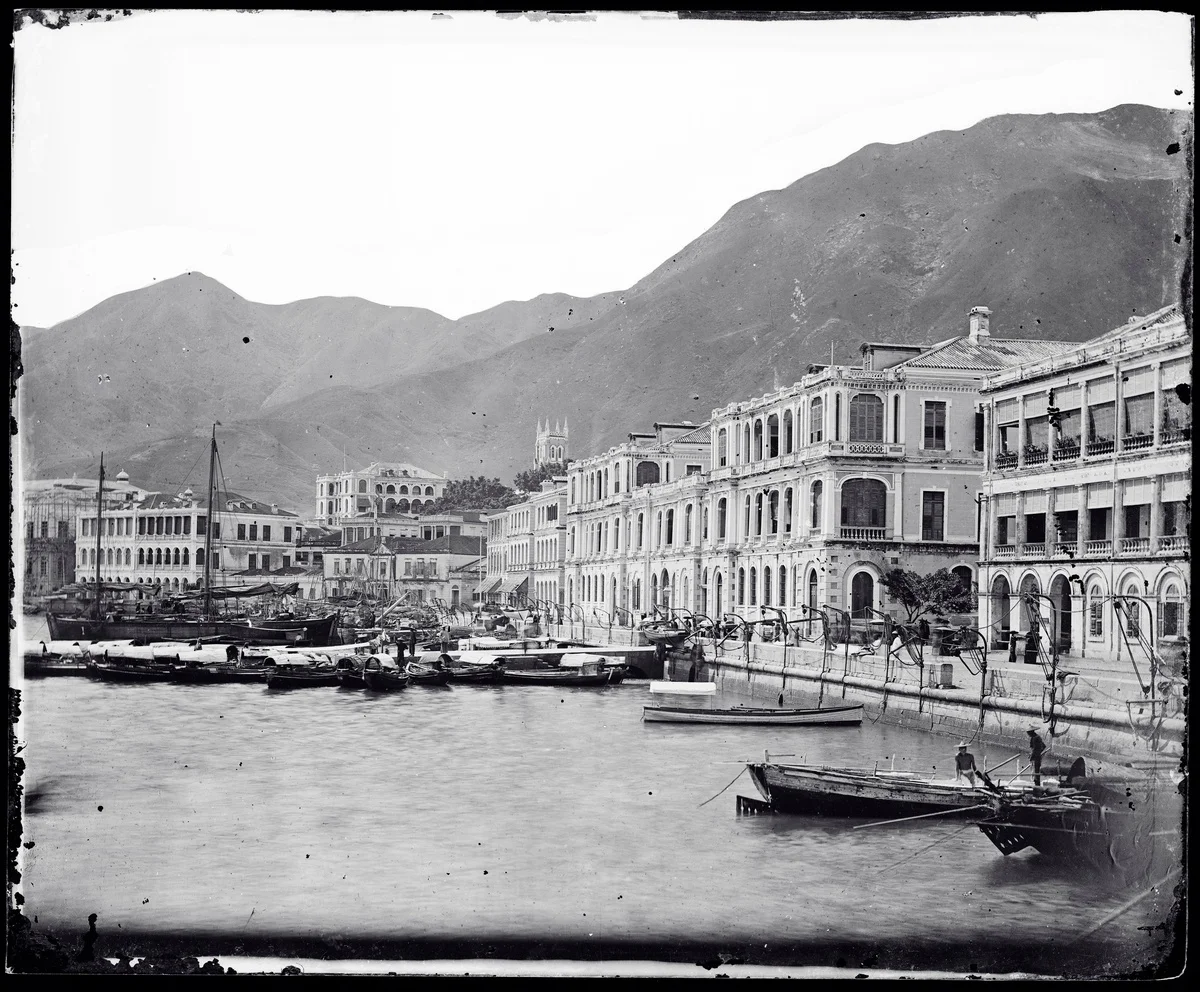 Before
 After

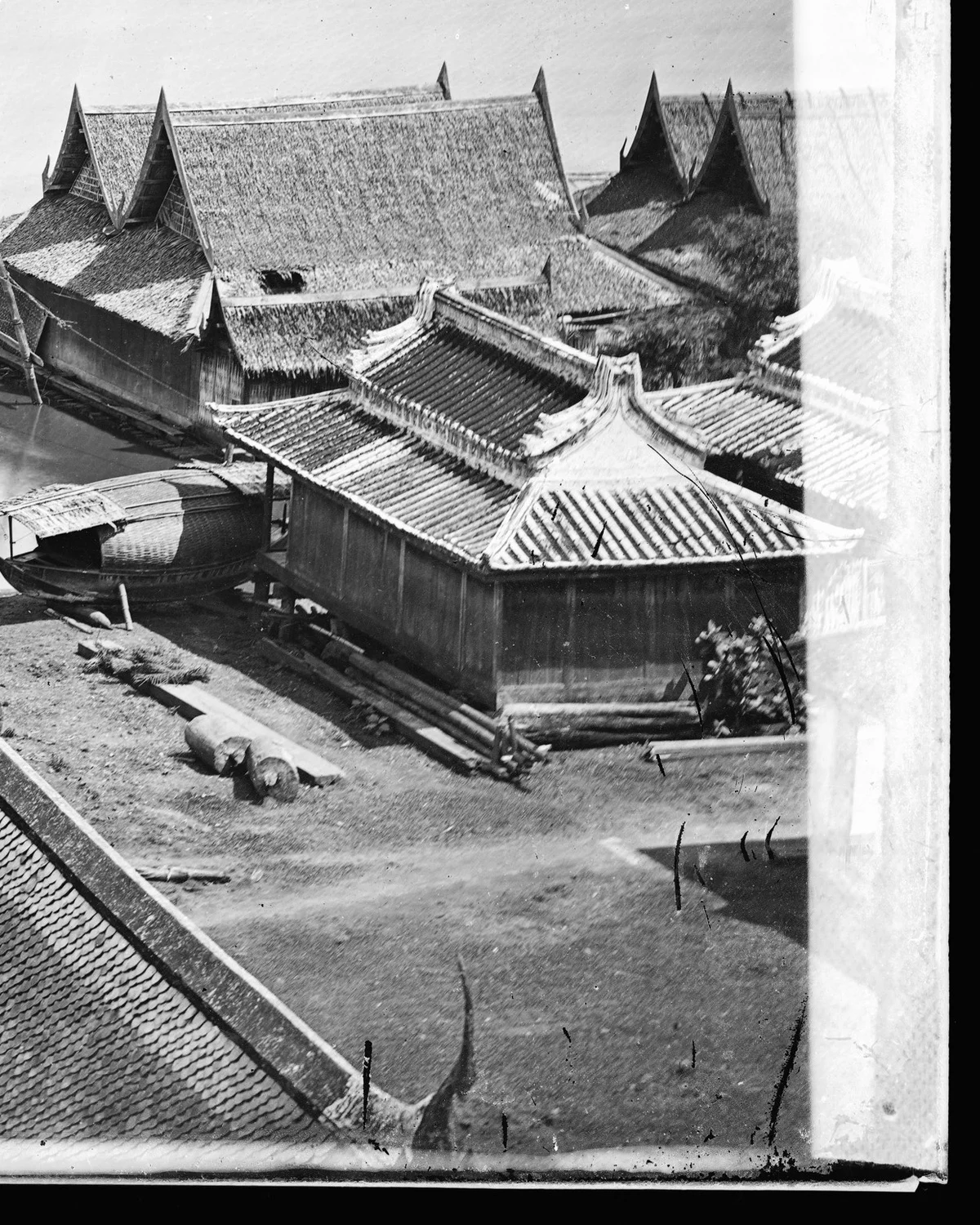 Before
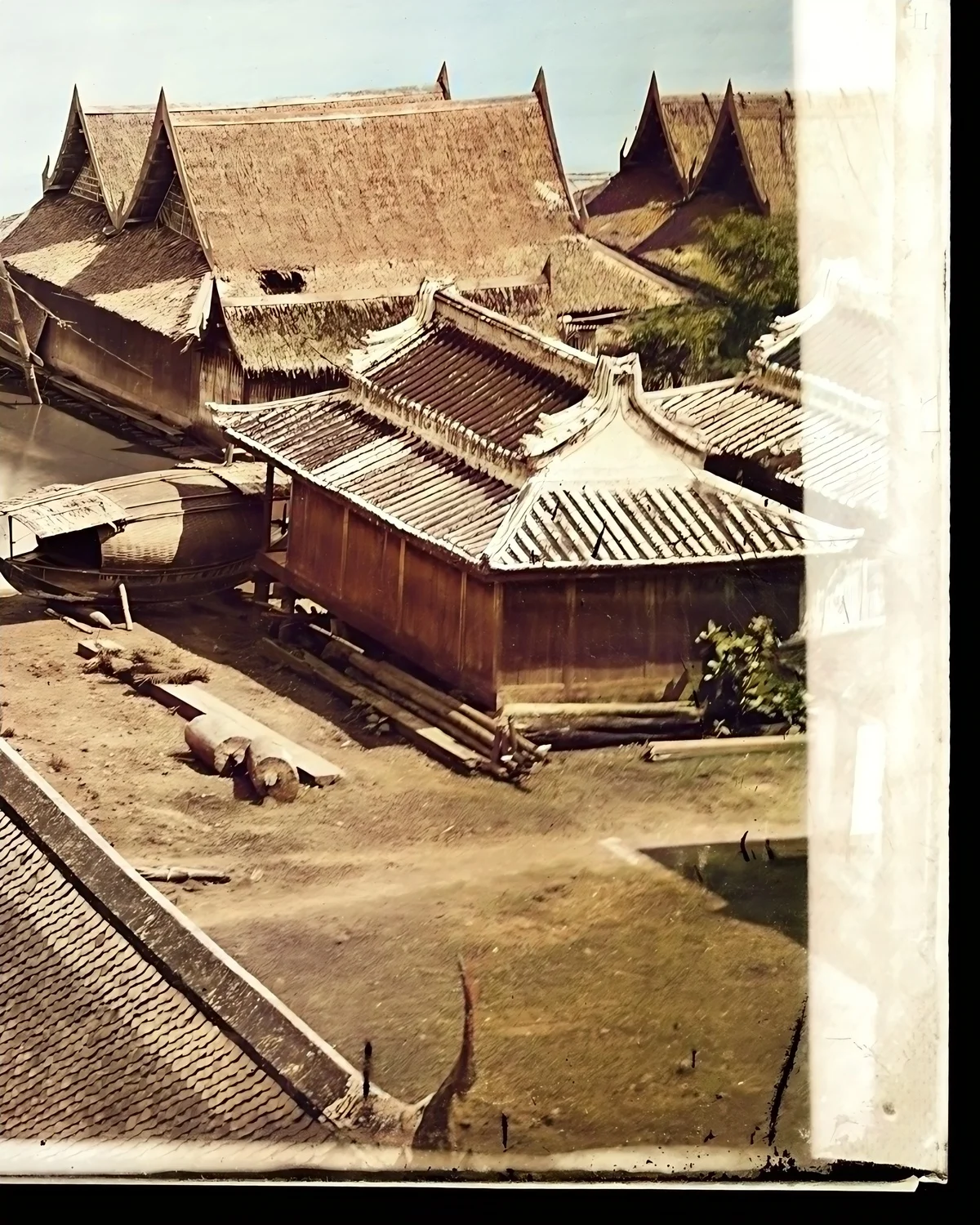 After

What restoring can’t do
- It can’t find the real colors. Black-and-white photos don’t record color. Any tool, or person, that adds color is making an informed guess. See colorize black and white photos.
- It can’t recover lost detail. Filling, enlarging and sharpening all estimate what probably belonged there. The result can look right and still differ from the original scene.
- It doesn’t replace the original. The restored file is a new picture. Keep the print and your first scan.
Before you try: protect the print
- Don’t tape anything to it. The Library of Congress says: “Do not use self-adhesive tape, sticky notes, glue, or other adhesives on photographs.”
- Be gentle with dust. The Library of Congress warns that “even soft brushes can scratch or otherwise damage photographs” and suggests a blower, “such as an air bulb, (not canned air)”.
- Handle it with clean hands. The Library of Congress says to handle photographs “with clean hands or while wearing clean nitrile gloves”.
- Keep copies of your scan. The Library of Congress suggests making “at least two copies” and storing them in different places.
Questions
Can a faded photo be restored?
Often, partly. Old Photo Studio stretches faded tones, so the photo gets its contrast back. A black-and-white photo that has turned yellow or brown gets suggested colors in place of the tint, or keeps the tint if you switch color off. Parts that have faded to plain white can’t be brought back.
Can a scratched photo be fixed?
Usually. The tool marks scratches and dust in red, you add any it missed, and it fills in the marked parts from the area around them. Step by step: how to fix old photos for free.
Can a torn photo be restored?
Thin tear lines may fill in if you mark them, but we haven’t tested it on tears yet, so check the result closely. Pieces that are missing can’t be rebuilt by the tool.
Can AI restore old photos?
AI tools, ours included, can fill in scratches, clean up grain and suggest colors. They work by estimating what probably belonged there. That often looks right, but it isn’t a record of what was really there, so keep your original.
Is it free?
Yes. Old Photo Studio is free, with no sign-up and no watermark, and your photo stays on your device.
Sources
- Library of Congress Preservation: “Care, Handling and Storage of Photographs”. https://www.loc.gov/preservation/care/photo.html (read November 9, 2026)
- Library of Congress, Digital Preservation: “Keeping Personal Digital Photographs”. https://www.digitalpreservation.gov/personalarchiving/photos.html (read November 4, 2026)
- What our tool does and doesn’t do: How it works and the FAQ.